InShot vs CapCut: Which Video Editor Fits a Small Team?
CapCut is my first pick for small teams that edit across devices. InShot suits quick mobile edits, but organizations need written consent under its terms. Jodi Bando, founder of fucklocal.com, says: “Capcut has been a godsend for producing our own content in house and avoiding expensive video editors and software.”
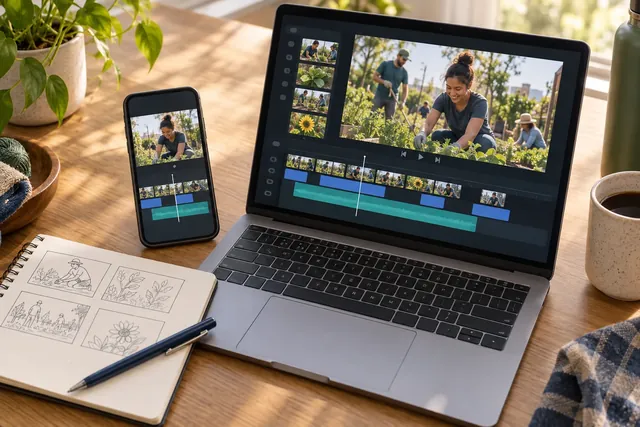
A small team rarely needs another way to make a clip look busy. It needs to turn an interview, event, or announcement into a clear video before the next deadline. The useful question in the InShot vs CapCut debate is which app makes that work easier to repeat.
I would start with CapCut if you edit on both a phone and a computer. It also suits a team that makes several types of videos each week. InShot is worth a look for quick edits by one creator. But businesses and nonprofits need its written consent. That matters more than the low price.
Both apps have capable editing tools and AI features. The best app for your team depends on the device you use, the features you actually need, and what happens when you export.
InShot vs CapCut at a glance
| Your priority | InShot | CapCut |
|---|---|---|
| Quick mobile edits | A useful starting point for individual creators | Useful when you also want templates and room for more involved edits |
| Desktop and web | Mobile focus; also compatible with supported Apple silicon Macs | Dedicated desktop, web, and mobile options |
| Captions and layers | Auto captions, picture-in-picture, and keyframe editing | Auto captions, a multi-track timeline, and keyframe animation |
| Paid options | Monthly, annual, and lifetime Pro purchases listed on the U.S. App Store | Standard and Pro options; access varies by plan |
| Organization use | Written consent required under its current terms | Check the chosen plan and each asset's permitted use |
My first pick is CapCut for a team whose video work is likely to grow. InShot makes sense for quick mobile jobs. It also lets creators edit photos and make collages in the same app.
A user-friendly interface for everyday video editing
InShot: keep the task small
InShot brings trimming, merging, text overlays, music, and photo editing into one app. For beginners, I would start with a few steps. Choose the clips. Cut the dead space. Add the message, then export. That is enough for many personal updates and simple social posts.
A user-friendly interface should make corrections easy. Can you split a clip at the right word? Can you change a date without disturbing the rest of the edit? Those small actions matter more than how many effects appear on the first screen.
Try InShot if you want to finish videos on the phone you used to shoot them. Its photo and collage tools also suit creators who mix still shots with short videos. If you work for a group or business, check the terms below first.
CapCut: start simple, then add layers
CapCut has basic video editing tools, templates, and a timeline with room for many tracks. It also has controls to make text and images move. That gives creators several ways to build a clip. Beginners have more choices to sort through.
I would make the first project from your own footage. Trim the opening, split out a pause, add a title, and save a short export. Explore templates after you know how to make those changes yourself. A fast template is less useful if nobody can fix its timing.
For ease of learning, choose the app in which your least experienced editor can make those corrections. A feature list cannot tell you how quickly that person will feel comfortable.
Advanced features: both apps go beyond trimming
Both apps can remove a background or track a moving subject. Both also have keyframes, which set how a layer looks at a point in time. InShot has picture-in-picture tools to put one clip over another. CapCut lets you arrange clips on several tracks. Both offer speed controls, filters, transitions, and sound effects.
These tools help with specific jobs. Put a speaker beside a clip that shows how a task works. Move a title at a chosen moment. Speed up a long setup, then slow down for the part viewers need to see. Use motion tracking to keep a label near a moving object.
I would favor CapCut for layered video editing across devices. InShot still covers far more than basic cuts, so switching apps solely to get AI tools may solve a problem you do not have.
Keep branding simple in either app. Use a short opening title, one caption style, and a consistent closing frame. Save the logo and approved colors where all creators can find them. A few repeatable choices do more for recognition than a new set of transitions every week.
Captions and AI tools: judge the corrections
Both InShot and CapCut offer automatic captions. The distinction is not whether the app can turn speech into text. It is whether your editor can correct the subtitles, adjust their timing, and keep them readable without slowing the job down.
Try a clip that includes a person's name, a place name, and a number. Those details are crucial in community announcements. Check every word against the recording. An attractive caption style does not make an incorrect date less damaging.
For Reels and YouTube Shorts, leave room for buttons and the post text. View the finished video on a phone at normal size. Someone watching with the sound off should grasp the main point. They should not need to pause every few seconds to read it.
Some CapCut caption tools require Pro, even if you pay for Standard. Check InShot's options in the app, too. Before you buy a plan, make the captions you need. Fix the words, then export the clip. This quick test shows which tools you can use and which cost more.
Paid options: compare the bill you will actually pay
InShot Pro pricing
The U.S. InShot App Store listing shows Pro at $4.99 monthly, $19.99 yearly, or $49.99 for a lifetime purchase. These are U.S. iOS listings as of September 25, 2026; confirm the offer on your device before buying.
At those rates, the yearly plan costs much less than paying each month for a year. Still, finish a real project with the app first. A low price is good value only when the tools fit the job. A Pro purchase does not give a group or business the written consent it needs.
CapCut Standard and Pro
CapCut's U.S. App Store listing includes Standard at $9.99 per month and Pro at $19.99 per month. Other offers appear there, too. These are listed prices. Your account may show a different offer.
CapCut says prices can vary by region, platform, and promotion. Check the payment screen for your account, the renewal amount, and the features attached to that offer. Compare annual options only when the billing period and plan are clearly stated.
For a team, the key issue is access. CapCut's plan guidance says Pro benefits work on mobile, desktop, and web. Standard benefits work only in the mobile app, where that plan is sold. A cheaper phone plan may not suit someone who edits at a desk.
Free versions, watermarks, and export limits
A free download does not mean every project will export with every feature. Start with the final video you need: its size, captions, effects, and destination. Then find out which parts remain free in your installed version.
InShot says Pro removes its watermark and ads. If you use the free app, check the choices shown on your screen. Do not assume you can always remove the mark for free. Find out before you have a deadline.
CapCut says you can export without a watermark in some cases. It depends on the app version and the assets you use. You can sometimes delete a default ending clip. But premium templates or effects may still need Pro. Check the whole project for paid items.
Both apps advertise support for 4K at 60 frames per second. That describes a capability, not a guarantee of free access on every device. Check the actual export controls before making that setting part of your process.
For routine social videos, start with the resolution your publishing channel needs. Watch the saved file all the way through. Check the first frame, the last frame, subtitles, and audio level. A successful export should be part of the trial, not the first surprise on posting day.
Desktop editing and the team handoff
CapCut's desktop, web, and mobile options are a strong reason for a team to try it. A larger screen gives you more space to arrange clips and check an edit. That helps when phone footage turns into a long interview. It also helps when you need several versions of the same video.
InShot's Apple listing says it can run on some Macs with Apple silicon chips. That is not the same as having a full set of desktop and web tools. Check which Macs it supports. Try the app on the device you plan to use.
A plan that works on several devices may still be for one person. Check how many users it covers. Ask who can open a shared project and how much storage you get. Do not assume one Pro purchase covers the whole team.
Give each project a folder with the source clips, approved graphics, script, and final export. Keep feedback in one place. A comment such as “change the date at 00:12” is easy to act on. A string of vague messages takes much more time to sort out.
This helps the next editor find the right files. A school, small business, or local news team should not depend on one person's phone. Staff can change. The files should stay with the team.
Creating content for an organization: check permission
InShot's current terms say the app is for people acting in a personal capacity. Companies, groups, and other legal entities need its prior written consent. If you edit for a business or nonprofit, get that consent first. The app's price does not settle this point.
Check the rights to the assets in either app, too. InShot limits how you can use its music. For example, ads need express consent. Paying for an editing plan does not let you use every track in any way you choose.
CapCut's materials license sets different rules for personal and commercial use. Check the marks on each asset. Its Commercial Sounds cover sharing on CapCut, TikTok, and TikTok for Business. To use those tracks elsewhere, you need separate rights from the rights holders.
This matters if a video will run on Instagram, YouTube, and in paid ads. Choose music with rights that cover all those uses. Or use your own speech and footage that you have cleared. Save the license with the project. Then the next editor knows where the track can go.
Which app should a small team choose?
Choose CapCut first if you edit across platforms or expect to make more complex videos. It gives you room to grow beyond quick mobile posts. Check the plan against the tools and exports your team will use.
Consider InShot if one creator makes short videos and edits photos on a phone. Try it for personal projects to see if that simple routine fits. A group or business needs written consent before it puts the app to work.
Try the same short project in each app: three clips, one spoken message, corrected captions, a logo, and a closing date. Include a revision after export. The best app is the one that helps your team produce clear videos consistently at a cost it understands.
Common questions about CapCut vs InShot
Which is better for Reels and YouTube Shorts?
Either can handle short social videos. I would try InShot for simple personal clips made on a phone. I would start with CapCut for more layers or desktop editing. Keep captions clear and get to the point fast. You do not need new effects for every trend.
Does InShot have automatic subtitles?
Yes. InShot has auto captions and other AI tools. Check which languages it supports and which tools you can use on your plan. Fix the subtitles before you post the video.
Will buying Pro cover every business use?
No. You need to check three things: the features you pay for, who may use the app, and the rights to its assets. Check each one for the way your team will share the video.